Introduction
Unity's PlayerPrefs is a simple yet powerful way to save and retrieve small amounts of persistent data. It's most commonly used for saving settings, preferences, or lightweight data between game sessions.
What is PlayerPrefs?
PlayerPrefs is a Unity class that allows developers to save and load key-value pairs of data. The data is stored on the user's device, and it persists even after the application is closed. It acts as a basic storage mechanism for game developers who need to store minimal amounts of data without the complexity of creating custom file management systems or integrating databases.
PlayerPrefs is best suited for:
- Storing simple data like high scores, player progress, or last level played.
- Saving game settings like volume levels, graphics preferences, or control schemes.
Key Features
-
Cross-Platform Compatibility
PlayerPrefsworks on all major platforms supported by Unity, including Windows, macOS, iOS, Android, and game consoles. This makes it a reliable option for developers building games targeting multiple platforms. Regardless of the device, the data is stored in a platform-specific location and can be easily accessed with the same methods. -
Easy to Use The simplicity of
PlayerPrefslies in its API. With methods likeSetInt,SetFloat, andSetString, you can save data in just one line of code. Similarly, retrieving data is as straightforward withGetInt,GetFloat, andGetString. This ease of use makes it a great starting point for beginner developers. -
Lightweight Since
PlayerPrefsis designed for small data storage, it performs efficiently when storing minimal data. It is not meant for handling large datasets, which ensures it remains a lightweight solution for scenarios like storing high scores or toggling settings without consuming significant resources.
Data Types Supported
PlayerPrefs supports the following data types:
- Int: For storing whole numbers like scores or level indexes.
- Float: For storing numbers with decimals, such as volume levels or speed modifiers.
- String: For storing text, such as player names, user IDs, or configurations.
This limited support means PlayerPrefs is not suitable for complex data structures like lists or dictionaries. For those, consider alternatives like JSON serialization or custom file systems.
Basic Usage
Saving Data
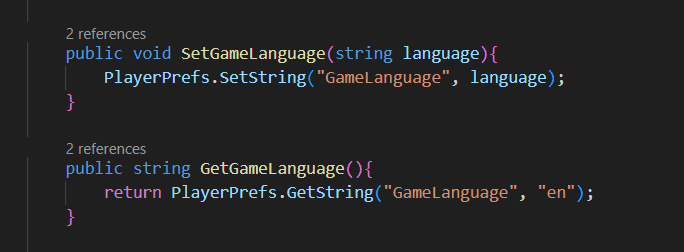
To save data, you simply use the Set methods provided by PlayerPrefs. These methods associate a key (a string identifier) with a value. For example, saving a high score might look like this:
PlayerPrefs.SetInt("HighScore", 100);
This stores the value 100 under the key "HighScore". It's important to call PlayerPrefs.Save() to ensure the data is written immediately, especially if the app might crash or close unexpectedly.
Loading Data
When retrieving data, you specify the key and optionally provide a default value. This default value is used if the key does not exist, ensuring your game doesn't crash when trying to access nonexistent data.
int highScore = PlayerPrefs.GetInt("HighScore", 0);
Here, 0 is the default value that will be returned if "HighScore" has not been set previously.
Checking if a Key Exists
Before attempting to load data, you can verify its existence using the HasKey method. This prevents unnecessary errors or relying on default values when data is critical.
if (PlayerPrefs.HasKey("HighScore"))
{
    Debug.Log("HighScore exists!");
}
Deleting Data
You can remove specific data or clear all stored data. For example, to reset all player preferences during testing or debugging:
PlayerPrefs.DeleteAll();
Use this cautiously, as it wipes everything.
Best Practices
-
Use Unique Keys Ensure each key you use is descriptive and unique to avoid accidentally overwriting existing data. For example, instead of a generic
"Volume", use"Settings_Volume"or"Audio_MainVolume". This is especially important in larger projects where multiple developers might be saving preferences. -
Avoid Overuse Since
PlayerPrefsis not optimized for frequent reads or writes, avoid using it in performance-critical parts of your game, such as during gameplay updates. Instead, use it for one-time settings or configurations that only need to be saved occasionally. -
Call
PlayerPrefs.Save()Although Unity automatically saves data when the application quits, explicitly callingPlayerPrefs.Save()ensures data is written immediately. This is useful when saving important milestones, such as when a player completes a level or achieves a high score. -
Encryption for Sensitive Data Data in
PlayerPrefsis stored as plaintext, making it easy to modify by anyone with access to the device's file system. For sensitive information, such as authentication tokens or premium feature flags, encrypt the data before storing it. Use simple encryption libraries or hash algorithms to add a layer of security.
Where is PlayerPrefs Data Stored?
The physical storage location of PlayerPrefs depends on the platform. Knowing this can help with debugging or when manually clearing stored preferences during development. Here are some examples:
- Windows: Data is stored in the Windows Registry under
HKEY_CURRENT_USER. - MacOS: Preferences are stored in the
Library/Preferencesdirectory as.plistfiles. - Android: Data is stored in shared preferences within the app's private data directory.
- iOS: Data is saved using
NSUserDefaults, a native mechanism for storing user preferences.
Limitations
-
Plaintext Storage Data stored in
PlayerPrefsis not encrypted, which means players with access to the storage files can tamper with the data. This makesPlayerPrefsunsuitable for storing sensitive or gameplay-critical information like player health or achievements. -
Performance While suitable for light usage,
PlayerPrefsis not designed for heavy read/write operations during gameplay. Storing too much data or accessing it frequently can lead to performance bottlenecks. -
Limited Data Types Since it only supports
int,float, andstring, you'll need to serialize complex data structures manually into strings (e.g., using JSON) before storing them.
When NOT to Use PlayerPrefs
Avoid using PlayerPrefs for:
- Large datasets: For inventories, save files, or extensive player data, consider using JSON, XML, or binary serialization.
- Sensitive information: For anything security-related, like API keys or user credentials, use encryption or a secure backend.
- Frequent updates: For dynamic data that changes often, rely on runtime memory or caching systems for better performance.
Conclusion
PlayerPrefs is a reliable and easy-to-use tool for managing lightweight, persistent data in Unity projects. It's perfect for small tasks like saving settings or preferences, but it comes with limitations that developers should understand. Use it for what it's best at and complement it with more advanced systems for complex storage needs. With best practices and appropriate use, PlayerPrefs can simplify and enhance your game development process.