Introduction
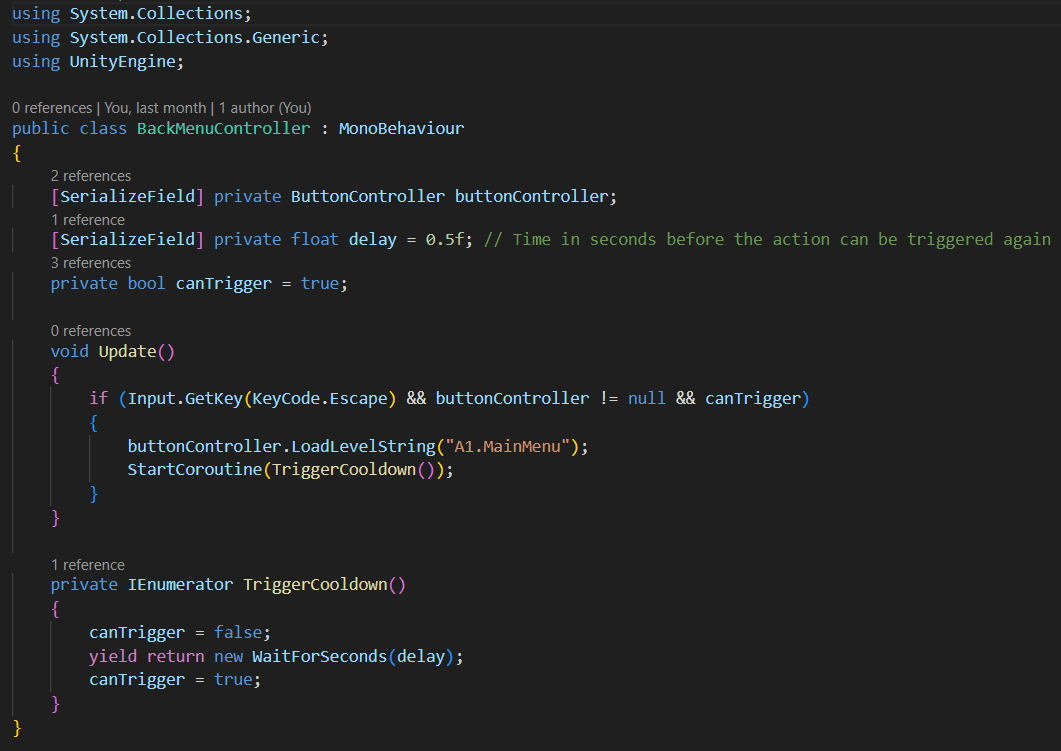
When developing games in Unity, choosing between Update and FixedUpdate is crucial for achieving consistent behavior in your game. Let's break down the differences and when to use each one.
What is Update?
Called every frame: The Update method is called once per frame. Its frequency depends on your game's frame rate, which can vary based on hardware and performance.
Use case: Ideal for tasks that need to be tied to the frame rate, such as:
- Handling player input (e.g.,
Input.GetKey()orInput.GetMouseButton()). - Animating objects.
- Updating UI elements.
Example
void Update()
{
    // Check for player input
    if (Input.GetKey(KeyCode.Space))
    {
        Debug.Log("Space key is being pressed!");
    }
}
What is FixedUpdate?
Called at fixed intervals: The FixedUpdate method is called at a consistent interval, independent of the frame rate. By default, it runs every 0.02 seconds (50 times per second), which you can adjust in the Time settings.
Use case: Perfect for physics-related calculations, such as:
- Applying forces to a Rigidbody.
- Detecting collisions.
- Simulating physics-based movement.
Example
void FixedUpdate()
{
    // Apply a constant force to a Rigidbody
    Rigidbody rb = GetComponent<Rigidbody>();
    rb.AddForce(Vector3.forward * 10);
}
Key Differences
Call Frequency
Update: Every frame (varies with frame rate)FixedUpdate: Fixed interval (default: 0.02 sec)
Use Case
Update: General game logic, input handlingFixedUpdate: Physics calculations
Frame Rate Dependent?
Update: YesFixedUpdate: No
When Should You Use Which?
Use Update when:
- Handling player inputs.
- Updating the game state that depends on visual frames.
- Performing tasks unrelated to physics.
Use FixedUpdate when:
- Applying forces or modifying the velocity of a Rigidbody.
- Running physics-based calculations like collisions or gravity.
Common Mistake to Avoid
Using Update for physics can lead to inconsistent behavior due to frame rate fluctuations. For instance, applying force in Update might result in jerky or unpredictable movements, especially on devices with varying performance.
Incorrect Example (Physics in Update):
void Update()
{
    Rigidbody rb = GetComponent<Rigidbody>();
    rb.AddForce(Vector3.forward * 10); // May cause inconsistent movement
}
Correct Example (Physics in FixedUpdate):
void FixedUpdate()
{
    Rigidbody rb = GetComponent<Rigidbody>();
    rb.AddForce(Vector3.forward * 10); // Smooth and consistent movement
}
Pro Tip
If you need to handle player input but use it for physics calculations, combine Update and FixedUpdate. For example:
bool isJumping = false;

void Update()
{
    if (Input.GetKeyDown(KeyCode.Space))
    {
        isJumping = true;
    }
}

void FixedUpdate()
{
    if (isJumping)
    {
        Rigidbody rb = GetComponent<Rigidbody>();
        rb.AddForce(Vector3.up * 200);
        isJumping = false;
    }
}
Conclusion
Understanding the differences between Update and FixedUpdate helps you create smoother gameplay experiences. Use Update for frame-based tasks and FixedUpdate for physics-related operations, and your game will run reliably across different devices and frame rates.